

Print, copy, and scan
The rules for using the printers vary depending on your status.
Print from a desktop computer in the library
Synchronize your card with the printer
-
Scan your student ID, your employee ID, or your SEDECO card.
-
Enter your institutional email address (or the username for your registered account) and the associated password.
-
Click "OK."
-
Scan the card again to verify that the synchronization was successful: your name will appear in the upper-right corner of the printer screen.
Start a print job
File menu / Print.
Swipe your card over the “SWIP HERE” icon .
Synchronize your SEDECO card with the printer
-
Purchase a SEDECO card from one of the card vending machines located in the university libraries.
-
Scan yourSEDECO card.
-
Enter your CEAD account username (prenom.nom@cptext.umontpellier.fr) and the associated password.
-
Click "OK."
-
Scan the card again to verify that the synchronization was successful: your name will appear in the upper-right corner of the printer screen.
Start a print job
File menu / Print.
Swipe your card over the “SWIP HERE” icon .
Print from a personal device (computer, tablet, phone)
Start your print jobs directly from the SEDECO website: www.sedeco-impressions.com/montpellier.
-
Buy a SEDECO card
Purchase a SEDECO card from one of the card vending machines located in the university libraries.
-
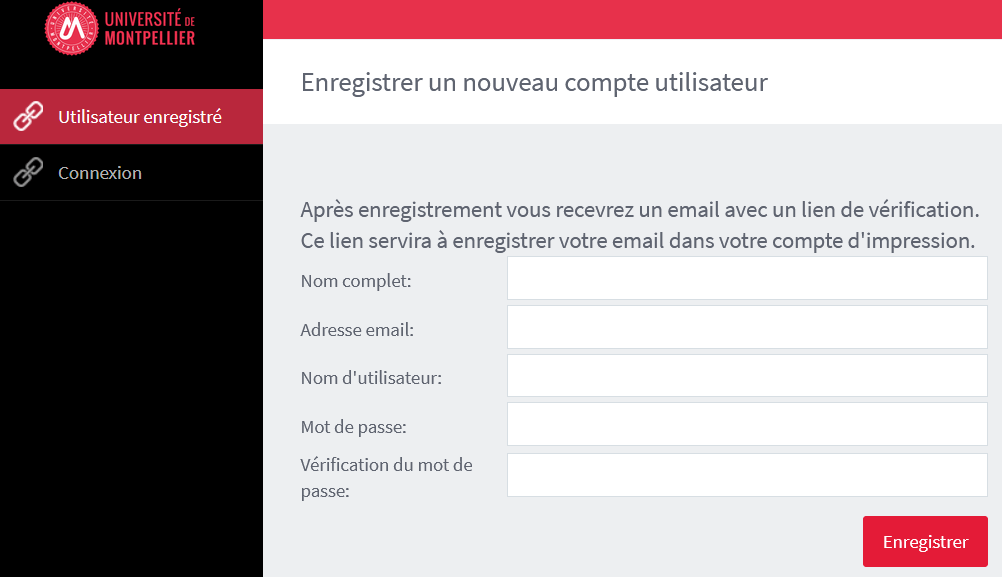
Create a SEDECO account on the SEDECO website
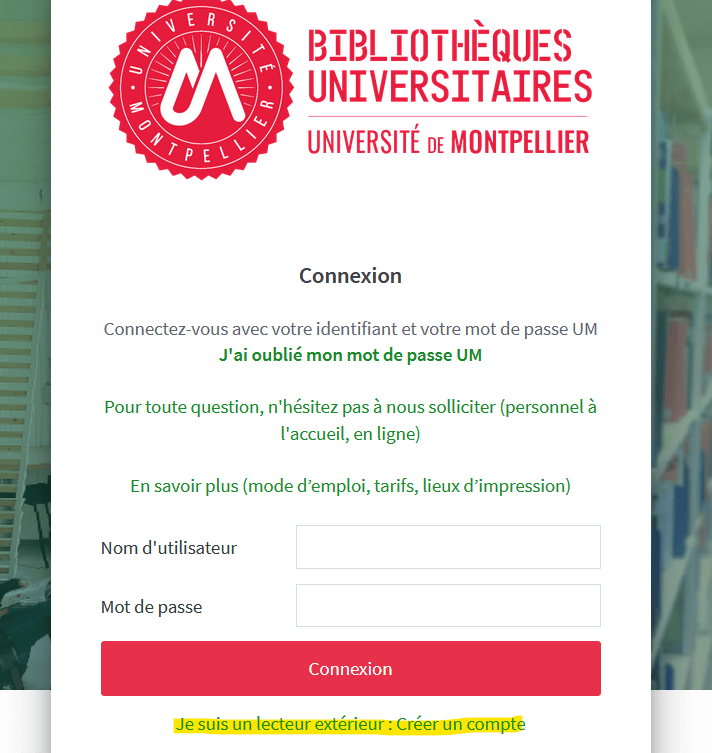
- Go to the SEDECO website
- Click "I am an external reader"
- Please fill out the form using your personal email address (not your UMPV institutional email address)
Start a print job
-
Log in to the SEDECO website.
-
Click "Web Print."
-
Click "Submit an Assignment."
-
Select the print queue: 1. PaperCut Black & White; 2. PaperCut Color.
-
Click "Print Options" and select the number of copies you want.
-
Click "Document to send, " then click "Browse" to select the document, and confirm by clicking "Send and Finish."
-
Pick up your documents by printing them at one of the university library printers or at a self-service printer on campus.
Synchronize your SEDECO card with the printer (during the first print job)
-
Scan your SEDECO card
-
Enter the external reader account ID and the associated password.
-
Click "OK."
-
Scan the SEDECO card again to verify that the synchronization was successful: your name will appear in the upper-right corner of the printer screen.
Top Up Your Print Credits
Top up based on your card
- Student or professional ID card, via IZLY on the CROUS website: log in to your IZLY account
- SEDECO card from a SEDECO card dispenser in university libraries
- SEDECO Card on the SEDECO website
In any case, click “Recharge Print Account” and enter your login credentials.
Top up based on your card
- SEDECO card obtained from one of the SEDECO card dispensers located in university libraries (the credits can then only be used for printing)
- SEDECO card on the SEDECO website
In any case, click “Recharge Print Account” and enter your login credentials.
Frequently Asked Questions About Printing at Montpellier's University Libraries
From a desktop computer in the university library, first sync your card (IZLY for UM students, SEDECO for external users, and UMPV) with the printer, start the print job via the File > Print menu, and then swipe your card in front of the “SWIPE HERE” icon. You can also print from your personal device via the SEDECO website.
Visit the SEDECO website (sedeco-impressions.com/montpellier). UM students and staff can print directly; external users and UMPV students must first create a SEDECO account, then use “web printing” to send a job and retrieve it from a self-service printer.
To print, photocopy, or scan, you’ll need an IZLY wallet with credits loaded onto your student ID or UM employee ID card, or a SEDECO card available from a machine in the university libraries. You can add credits to your IZLY wallet through your IZLY account (CROUS), at a SEDECO machine in the university libraries, or on the SEDECO website.
Start by linking your student ID card to your print account: swipe your card over the yellow reader on the printer, then enter your ENT login credentials.
For further reading
Check out these additional resources to get the most out of university library services: